
Applies To: Enterprise Administrators, Site Managers
Table of Contents
Inspection Edit Form (Part 1)
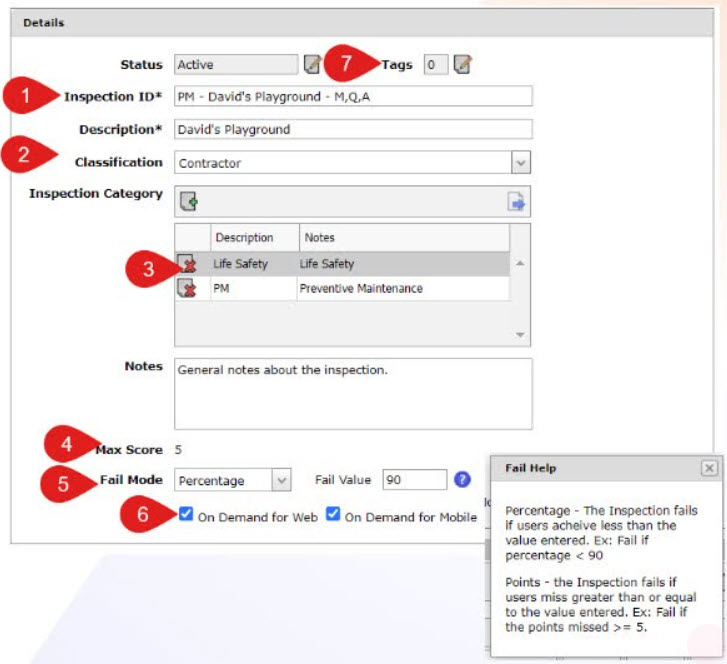
This form is where you define the core properties of an inspection, from its identification and categorization to how it's scored and where it can be accessed. You'll also manage its connections to other system elements and organize its content into sections and individual questions.
Part 1: General Details
- Inspection ID/Description: Use simple naming conventions to indicate the inspection's purpose. The ID should have the Work Type at the beginning and the Frequency(s) at the end.
- Classification: This displays where the inspection contents originated from for grouping purposes.
- Inspection Category: This controls what category(s) the inspection is part of and where it appears in the tree on the main inspection management page.
-
Max Score: This auto-calculates based on the highest possible point score for each question in the inspection.
- For example, a Yes/No question with Yes=5 AND No=0 adds 5 points to the Max score.
- Fail Mode: This tells the system how to grade this inspection by either raw points missing or a percentage of points missing. These DO NOT take into account questions answered with "n/A" or questions that are skipped.
-
On-Demand Flags: These determine if the inspection is accessible in certain areas.
- For Web: Controls if the inspection can be performed on the web portal (usually enabled for SIs and administrator tasks like document uploads).
- On Mobile: Controls if the inspection can be associated with new WUs created on Mobile.
Part 2: Related Items
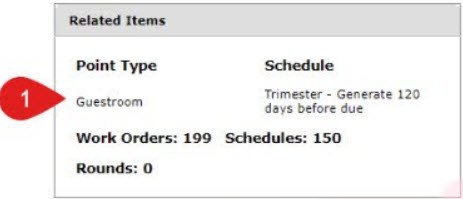
Once an inspection is connected to an activity, this widget appears, showing its ties to Scheduled Activities and listing active work orders, schedules, and rounds. *Note: Be aware that once an inspection has a history, you cannot make certain edits.
- This widget appears and indicates what Scheduled Activity (PM, RS, or SI) it is tied to and how many active work orders, scheduled, and rounds are present in the database.
-
Note: Once an inspection has a history, you cannot edit certain objects.
- Make sure your inspection is 100% set up before attaching; otherwise, you will have to copy the inspection to add/remove questions and then replace it on the scheduled activities.
- This includes adding/removing questions and adding/removing sections.
Part 3: Sections
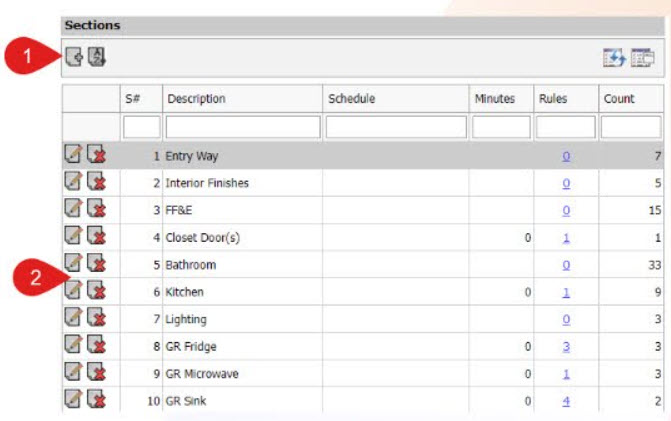
For larger inspections, you can organize similar questions into sections, and you have the flexibility to add and reorder these sections during the configuration phase. You can also control their visibility based on schedules or attributes.
- Sections: Bigger Inspections can be made up of sections to group similar questions. In the configuration phase, you can add as many sections as you'd like and even reorder them.
-
Section Details: This is a list of all sections in the inspection.
- Schedule: This controls whether or not a section appears based on certain activity schedules. For example, you wouldn't want questions about an annual inspection to appear on the monthly or quarterly PMs.
- Minutes: This is the estimated time it takes to complete all questions in this section, which rolls up to the entire inspection time and Estimated Times on Activity Schedules.
- Rule: This displays any rules that cause the section to be included when performing the inspection. These could be tied to asset/site attributes or other data points.
- Count: This shows the number of questions in this section.
Part 4: Questions
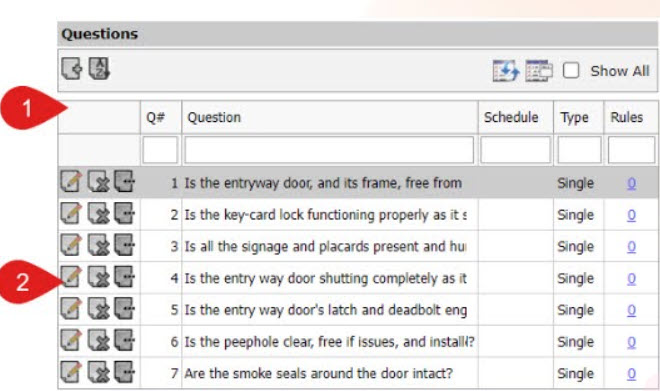
Questions are the core of any inspection, ranging from a single query to over 200 items in comprehensive Room PMs. Once an inspection has a work history, you cannot modify its questions by adding, removing, or reordering them.
-
Questions: Inspections and their sections are comprised of individual questions.
- Schedule: This controls whether or not a question appears based on certain activity schedules. For example, you wouldn't want questions geared towards an annual inspection to appear on monthly or quarterly PMs.
- Type: This shows the type of question (currently there are 13 different types).
- Rule: This displays any rules that cause the question to be EXCLUDED when performing the inspection. These could be tied to asset/site attributes or other data points.
Inspections Section Edit Form
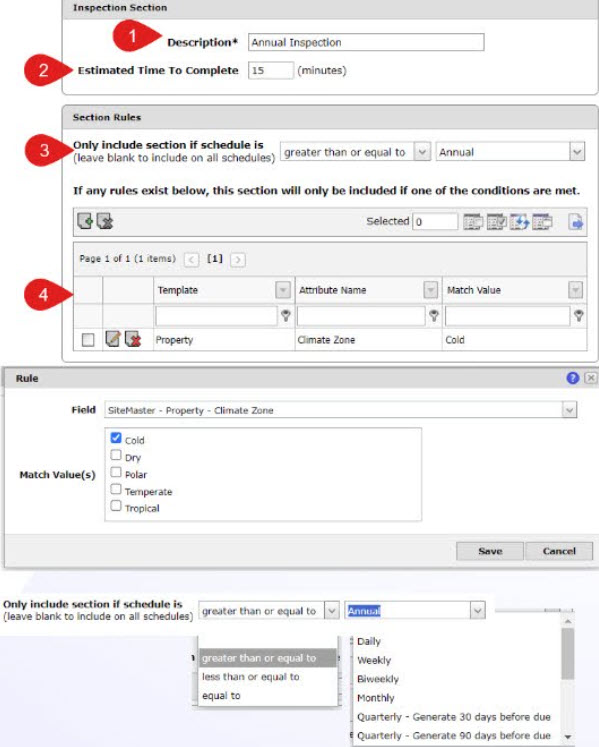
This form allows you to define the name and establish completion time for a section, and crucially set rules for when the section should be included or excluded based on frequency or specific attributes.
- Description: This is the general name of the section that appears when performing inspections.
- Estimated Time to Complete: This indicates how long it should take a user to perform all the questions within this section. This rolls up into the full inspection and scheduled activity, estimated time to aid in work scheduling.
- Skipping Rules (Frequency): This controls whether or not this section is INCLUDED when on a certain activity frequency. You can set this to any existing frequency in the database to be equal to, or greater/less than. In this example, this section will only appear on PM/SI/RS that are Annual frequency or greater (it won't appear for monthly, quarterly, semi-annual).
- Skipping Rules (Attributes): This controls whether or not this section is included when a certain attribute is present. These can be from the Asset Templates or the Site Templates.
-
- In this example, this section only appears if the site is set to the "Cold" climate zone via the site edit form. (Aka - this inspection should only take place for sites in the north and not needed in warmer climates.)
Question Edit Form (Part 1) - Question Details
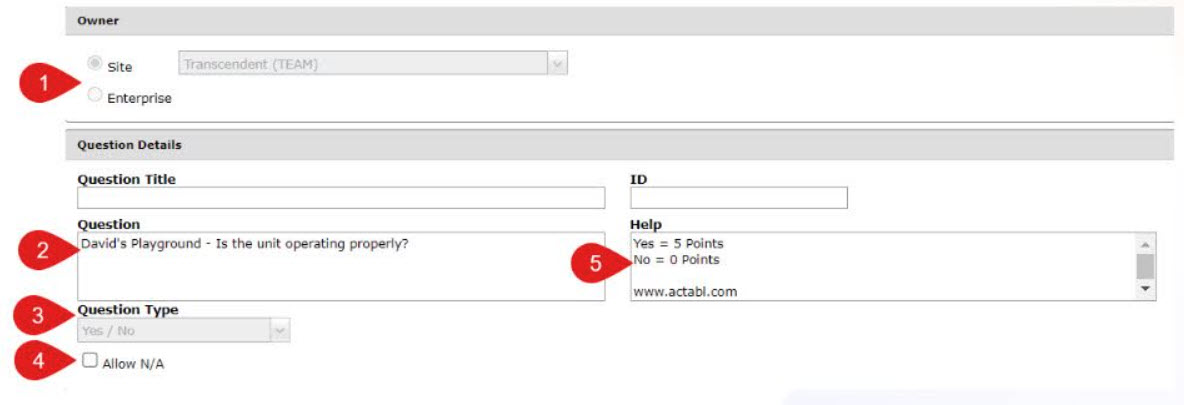
From here, you define the core characteristics of each question, including its ownership, the question's text itself, its type, and whether users can mark it as "NA." You can also provide helpful guidance for engineers completing the task.
- Owner: This displays what visibility owns the question. This will be auto-inherited from the inspection ownership setting.
- Question Description: This is the Question or Task at hand. Always be as descriptive as possible so the engineer knows how to properly complete the task.
- Question Type: This defines what type of question and the UI that appear when answering the question on we/mobile. Certain types have Answer Details (multiple, Single, Range, yes/no) while others don't (date, text, OK).
- Allow N/A: This controls whether or not the N/A toggle appears on mobile/web for this question. This essentially allows the user to bypass answering the question, and any points associated will be excluded from the pass/fail logic.
- Question Help: Input any general help guidelines here to aid the engineer when encountering this question. These appear on both web and mobile UI. If a web address is filled out, the system will detect it and create a clickable link to bring up whatever webpage is input.
Question Edit Form - Answer Details
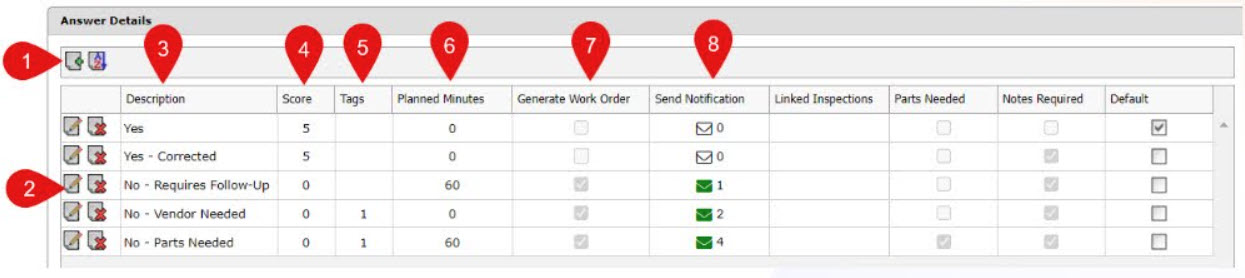
This crucial section allows you to configure specific behaviors and outcomes for each possible answer to a question, such as scoring, planned time, and whether selecting an answer triggers a work order, notification, or requires additional notes.
This section only appears on the following question types: List, Single, Range, Yes/No, and True/False.
Answer Properties
- Add/Reorder: You can add a new Answer (Multiple, Single, List only) and reorder the sequence. Once an inspection has a history, you cannot add to or reorder it.
- Edit/Remove Answer: This brings up the edit form (see following slide) or allows deleting an answer (cannot delete once the inspection has a history).
- Description: This is the syntax that appears next to the checkbox/radio button.
- Score: This is the number of points awarded when this answer is selected when the work order is completed.
- Tags: This shows the number of tags applied to this answer (more details on tags in the following slides).
- Planned Minutes: This is an estimate of how long the selected answer should take an engineer to complete.
- Generate Work Order: This flag determines if a work item (WI) will be generated if this answer is selected when the work order is completed.
- Send Notification: This indicates the number of Site Responsibilities that are set to receive an email notification when this answer is selected.
Follow-up Actions
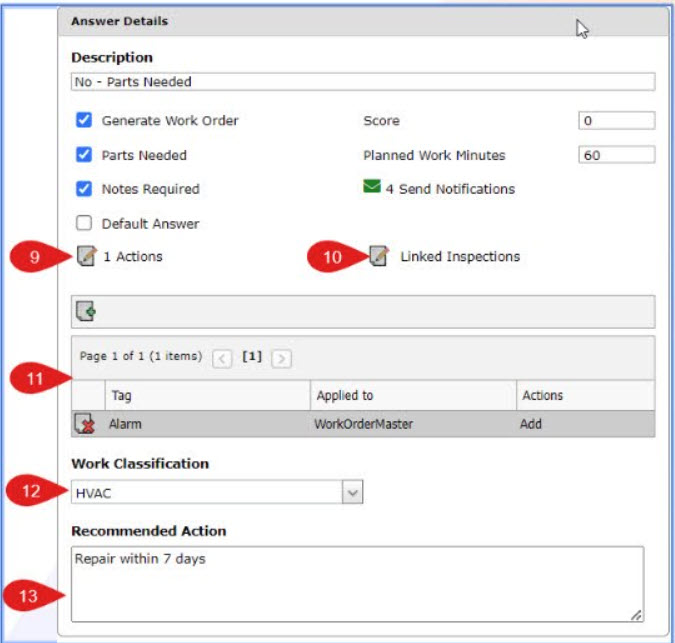
This section focuses on what happens after the answer is selected, enabling actions like linking inspections, generating "Parts Needed" requests, requiring notes, setting default answers, and applying various work classifications and recommended actions.
9. Actions: Use the Rules Engine to set up follow-up actions when this answer is selected (Ex, Creating Work Tasks; Generating Reports)
10. Linked Inspections: Shows the number of inspections that will be added to the WI that is generated when that answer is selected.
11. Tags: These are used to apply or remove tags from either Work Orders, Sites, or Assets.
12. Work Classification: This automatically assigns a work classification to the WI that is generated when this answer is selected.
13. Recommended Action: This automatically inputs this syntax in the "Work Details" for the WI that generates when this answer is selected.
FAQs
Q: Who uses inspections?
A: Enterprise Administrators, Site Managers, and Mobile Users all utilize inspections.
Q: Can I edit an inspection after it has work history?
A: No, once an inspection has a history, you cannot add/remove questions, nor can you reorder them. Similarly, you cannot add or reorder answers, or delete an answer once an inspection has history.
Q: What is the "Max Score" for an inspection?
A: The Max Score is automatically calculated based on the highest possible point score for each question in the inspection. Ex. If a yes/no question awards 5 points for "Yes" and 0 for "No," 5 points are added to the Max Score.
Q: How does the "Fail Mode" work?
A: Fail Mode determines how an inspection is graded (either by raw points missing or a percentage of points missing.) It does not consider questions answered with a "N/A" or skipped questions.
Comments
0 comments
Article is closed for comments.