
Applies To: Enterprise Administrators, Site Managers, Mobile Users
Table of Contents
- Inspection Notification
- Question Types
- Inspection Display Modes
- Mobile Inspection Form
- FAQs
- Related Articles
Inspection Notification
Inspection Notifications allow you to send a configured email notification to different Site Responsibilities when an answer is selected during an inspection.
This feature empowers the system to keep managers or above property personnel informed about alarms or other concerning situations at properties. You can set these notifications up for every question type and even configure multiple recipients for each question.
From the Transcendent dashboard, pan over to the navigation menu on the left-side of the screen.
- Click "Configuration"
- Click "System Configuration" in the next submenu.
- Click "System Message Master." (The main content area displays a list of Message IDs.)
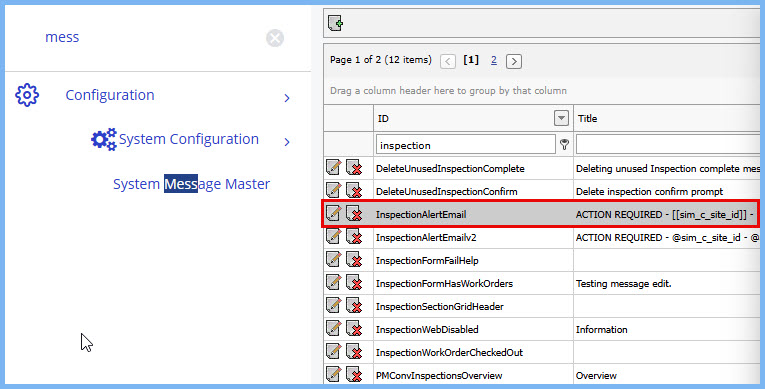
4. Locate the "InspectionAlertEmail" entry in the list and click the Edit  icon.
icon.
- This opens the "Message ID: InspectionAlertEmail" detail form on the right side of the screen.
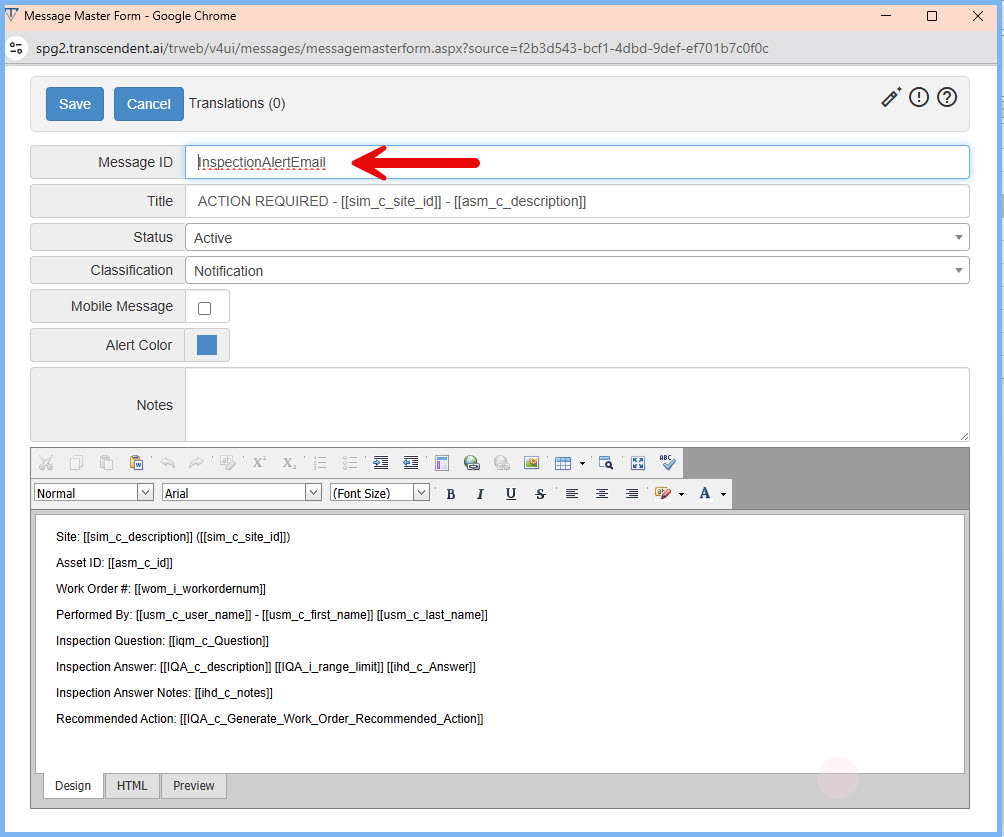
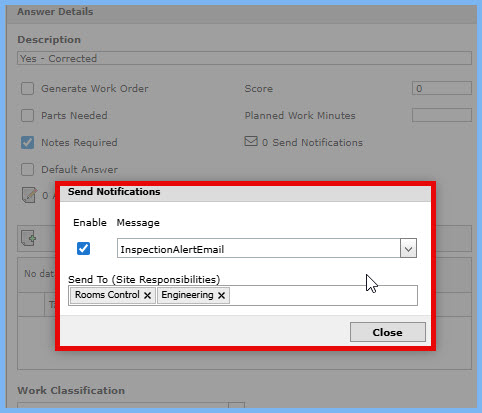
5. Within the "Message ID: InspectionAlertEmail" form, click the "Send Notifications" button or link.
- The "Send Notifications" pop-up window appears.
Value of Inspection Notifications
- Keep management and above property aware of critical issues
- Automate reporting of issues
- Fully customizable
Question Types
Transcendent inspections offer a wide range of options currently supporting up o 13 different question types each designed to capture specific information efficiently.
- Single Select: Choose one option, and work from the inspection, and the notification email will be generated from the weighted answers.
- Yes/No Format: A simple yes or no style question. Work Items (WI) and Notes will be generated.
- Signature Capture: If you're using a vendor, a signature can show work has been completed.
- Text Box: Enter notes from the field freely into this box.
Question Types (Continued)
- Attach Photo: Use this option to capture damage to an asset or document completed work.
- Date Input: Select a Date from a calendar.
- File Question: Attach an annual inspection or other paperwork to work completed on an asset.
- List Type: Record multiple answers or various found.
Question Types (Continued)
- Numeric Field: Record a number or value relating to the asset.
- Range Question: Enter a value corresponding to a predetermined numeric range.
- Multiple Select: Select two answers that may apply to the asset being worked on.
- "OK" Question: A slide button field, confirming the status or condition of the asset.
Inspection Display Modes
The Transcendent Mobile Application offers three flexible inspection display modes, allowing you to control how you view questions. You can adjust these modes at any time through the Web's User Edit Form, Mobile's User Edit Form, or directly within the Mobile's Inspection Help (inside the inspection).
- Question Mode: This displays one question per page.
- Section Mode: This displays all questions in a single section on one scrollable page.
- Full Mode: This displays all questions in the entire inspection on a single, scrollable page.
Mobile Inspection Form
The inspection form is a robust tool packed with features to streamline your work, providing detailed information and interactive elements for efficient task completion.
Inspection Details - Part 1:
- Back: Go back to the Work Details page.
- Question Help: Find general guidelines and a tool to change the Display Mode.
- Work Timer: An active timer shows how long the work order has been active. This actively ticks away while active (Start Work → Stop Work.)
- Progress Bar: View the Number & Percentage of Questions Completed.
- Inspection Summary: See a section-by-section breakdown of the inspection.
- Question Notes: Manage notes specific to that question. If a note is present, an orange badge will display.
- Completion Check: This display is green when that question has been answered.
- N/A Option: If the question is flagged for the N/A feature, the toggle will show. This allows the user to mark the question as "N/A" and thus, completed the question.
Inspection Details - Part 2:
9. Section Header: This displays the section name and questions completed/all.
10. Section Completion: This denotes if a section has been completed
11. Question Description: This displays the Section# and Question# (e.g., 1.4) and the Question Details.
12. Question Pane: This is the interactive area where you answer the question. It's different for every type.
13. Question Help: If Question Help is filled out on the web, it will show a preview. Tap on the bar to display a full page view of question help. If URLs are detected, a user can tap them to bring up a browser tab.
14. Navigation Bar: Depending on the display settings, this will navigate the user to the previous and next/section.
FAQs
Q: Can inspection notifications be sent to multiple people?
A: Yes, you can set up multiple notification recipients for each question.
Q: What are the benefits of inspection notifications?
A: They keep management and above-property personnel aware of crucial issues, provide automated reporting of issues, and are fully customizable.
Q: Where can I adjust the inspection display modes on mobile?
A: You can adjust the display modes in Mobile's User Edit Form and Mobile's Inspection Help Page (inside the inspection)
Related Articles
Comments
0 comments
Article is closed for comments.